

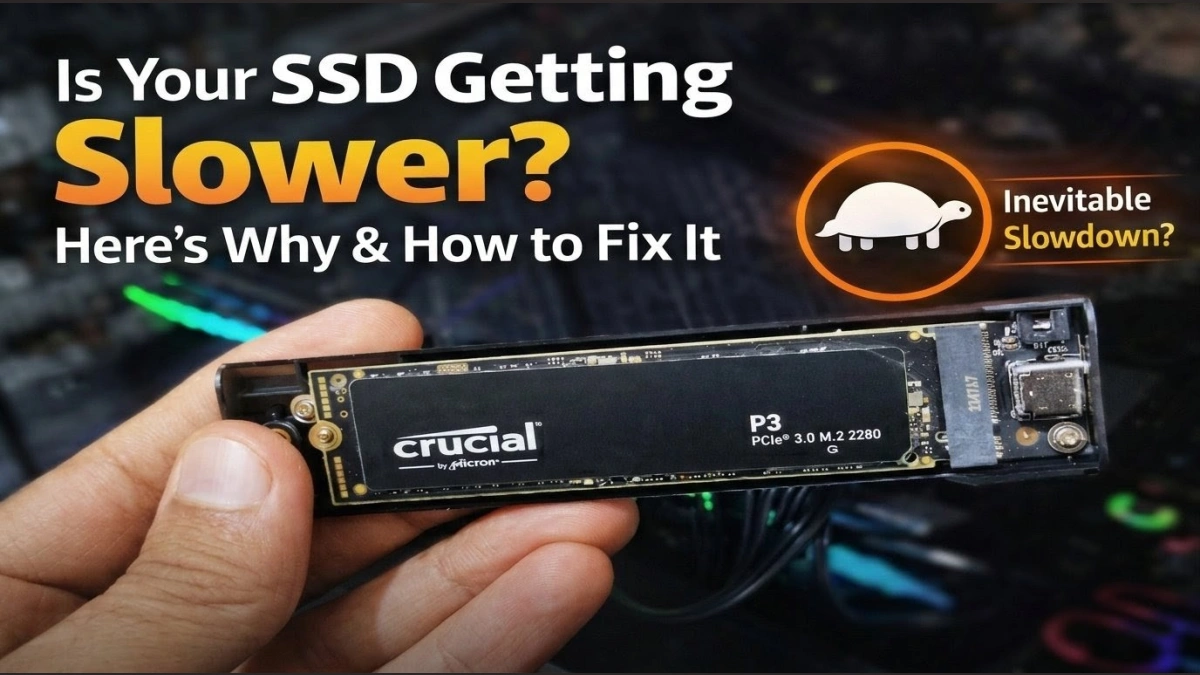
Why Your SSD Gets Slower Over Time (And How to Fix It)
Introduction
Solid State Drives (SSDs) have completely changed how computers store and access data. Compared to traditional hard disk drives (HDDs), SSDs are much faster, quieter, and more reliable.
Because of these advantages, most modern laptops and desktops now use SSDs as their primary storage device.
However, many users notice something unusual after using an SSD for a few years: the drive starts to feel slower than it used to be.
You may notice things like:
Your computer taking longer to boot
Applications opening more slowly
File transfers becoming less responsive
If this happens, it doesn’t necessarily mean your SSD is failing. In many cases, the slowdown is normal behavior related to how SSDs store and manage data.
Let’s understand why this happens and how you can improve your SSD’s performance.
Why SSDs Are Faster Than Hard Drives
Before understanding why SSDs slow down, it's helpful to know why they are so fast in the first place.
Traditional hard drives store data on spinning magnetic disks. A mechanical arm moves across the disk to read or write information.
Because of this mechanical movement, HDDs are slower and more prone to wear and tear.
SSDs work very differently. They store data using NAND flash memory chips and have no moving parts.
This gives SSDs several advantages:
Faster data access speeds
No mechanical noise
Better durability
Lower power consumption
Compact and lightweight design
Example
An HDD might take 10–15 seconds to boot Windows, while an SSD can start the system in just a few seconds.
This is why SSDs have become the standard storage option for modern computers.
Why SSD Performance Drops Over Time
Although SSDs are extremely fast, their performance can decrease slightly as they fill up with data.
This happens because SSDs need empty memory blocks to write new data quickly.
When an SSD is brand new, it has plenty of empty blocks available. Writing new data is fast and efficient.
However, as the drive fills up:
Empty blocks become limited
The SSD must reorganize existing data
Internal operations increase
Because of this extra work, write operations can become slower, which makes the system feel less responsive.
Understanding Garbage Collection
One of the most important internal processes inside an SSD is called garbage collection.
Garbage collection helps the SSD organize stored data and free up space.
When files are deleted, the storage space is not immediately cleared. Instead, the SSD marks those blocks as available for reuse.
Later, the garbage collection process reorganizes the data and clears those blocks.
Simple Example
Imagine a storage shelf filled with half-full boxes.
Instead of keeping them that way, someone reorganizes the items into fewer boxes so that empty boxes become available again.
This is exactly what garbage collection does inside an SSD.
However, if the drive is almost full, this process becomes more complex and time-consuming, which can reduce performance.
What Is Write Amplification?
Another reason SSDs slow down is something called write amplification.
Write amplification occurs when the SSD must move data internally before writing new data.
Example
If the SSD needs to write 1GB of new data, it might have to move 2GB or more internally to create empty memory blocks.
This leads to:
Higher write latency
Increased drive workload
Additional wear on NAND memory
Over time, this process can slightly reduce SSD performance.
Signs Your SSD Is Slowing Down
Here are some common signs that your SSD performance might be decreasing.
Slower Boot Times
Your system may take longer to start compared to when the SSD was new.
Applications Take Longer to Launch
Programs that used to open instantly may now take a few extra seconds.
Slower File Transfers
Copying or moving large files may feel slower than before.
These changes usually happen gradually, which is why many users don’t notice them immediately.
How to Fix Slow SSD Performance
The good news is that you usually don’t need to replace your SSD when performance drops.
There are several simple ways to improve SSD speed.
1. Keep Free Space on Your SSD
One of the easiest ways to maintain SSD performance is to avoid filling the drive completely.
Experts recommend keeping 15–20% of the storage free.
Example
If you have a 1TB SSD, try to keep around 150–200GB free space.
This allows the SSD to manage data more efficiently.
2. Enable TRIM
TRIM is a built-in feature that helps the SSD clean up unused storage blocks.
It allows the operating system to tell the SSD which data blocks are no longer needed.
This improves garbage collection and maintains performance.
Most modern operating systems such as:
Windows
macOS
Linux
already enable TRIM automatically.
3. Update SSD Firmware
SSD manufacturers occasionally release firmware updates to improve performance and reliability.
Updating firmware can optimize internal operations and fix bugs.
Many SSD brands provide software tools for this.
Popular SSD brands include:
Samsung
Western Digital
Crucial
Kingston
4. Avoid Excessive File Writes
Some applications generate large amounts of temporary data.
Examples include:
Video editing software
Large game installations
Virtual machines
Reducing unnecessary file writes can help extend your SSD’s lifespan and maintain speed.





















Comments (0)
No posts yet
Be the first to comment!