

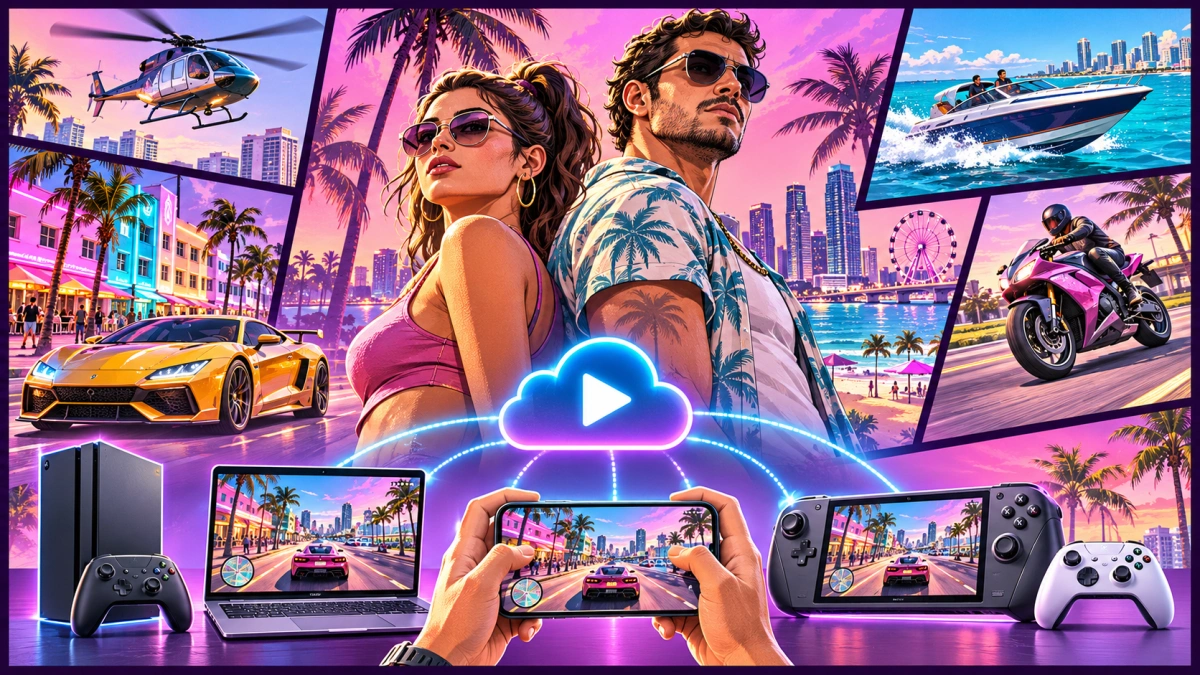
Experience Leonida Anywhere on the Devices You Already Own
The anticipation surrounding Grand Theft Auto VI is unlike anything the gaming industry has seen in over a decade. Set against the sun-soaked, neon-lit backdrop of Vice City and the vast state of Leonida, Rockstar Games' next magnum opus promises unparalleled open-world detail, bustling cityscapes, and unprecedented interactive realism. However, for millions of gamers worldwide, jumping into this next-gen spectacle comes with practical dilemmas: the cost of current-generation hardware, crowded living room televisions, or simply the desire to carry the criminal underworld of Vice City wherever life takes them.
Fortunately, Microsoft and Xbox have engineered modern solutions that break down traditional hardware barriers. Through Xbox Cloud Gaming and Xbox Remote Play, you do not necessarily need an Xbox Series X tethered to a high-end 4K TV to dive into Leonida. Whether you want to stream directly from Microsoft's cloud servers to an older Xbox One console, save precious solid-state drive space on your Xbox Series X|S, or stream your personal console's horsepower directly to your smartphone, laptop, or handheld PC, you have flexible choices at your fingertips.
In this comprehensive guide, we walk you through everything you need to know about setting up and enjoying Grand Theft Auto VI on the devices you already own.
Xbox Cloud Gaming vs. Xbox Remote Play: What Is the Difference?
Before diving into setup instructions, it is essential to understand the distinction between Cloud Gaming and Remote Play, as both serve unique gaming lifestyles:
- Xbox Cloud Gaming: Games are rendered in real-time on custom Microsoft cloud data center servers running customized Xbox Series S hardware profiles. Video and audio are streamed directly to your screen over the internet, and your controller inputs are relayed back to the server. You do not need to download the massive file size of GTA VI, and you do not even need an Xbox Series X|S console in your household.
- Xbox Remote Play: Your physical Xbox Series X or Series S console in your home acts as your personal streaming host. The game runs natively on your console, and the video feed is beamed across your home Wi-Fi or over the internet to a companion device (such as an iPhone, Android smartphone, tablet, Windows laptop, or portable handheld PC).
Playing Grand Theft Auto VI via Xbox Cloud Gaming
Grand Theft Auto VI officially supports Xbox Cloud Gaming, marking a monumental milestone for next-gen accessibility. This capability allows players who still cherish their trusty Xbox One, or players on Xbox Series X|S who wish to preserve their internal SSD storage for other large titles, to experience Leonida seamlessly.
Key Features & Playtime Allotments
- Custom Series S Visual Quality: When streaming via Xbox Cloud Gaming, GTA VI utilizes Xbox Series S graphical settings, delivering crisp rendering, dense traffic density, and vibrant Florida-inspired lighting directly through the cloud.
- Preserve Internal SSD Storage: Modern blockbuster titles regularly exceed 150GB to 200GB of storage. Cloud streaming lets you bypass multi-hour installation downloads entirely.
- Playtime Allotment with Game Pass: Select Xbox Game Pass tiers feature a monthly cloud allotment of up to 15 hours of streaming playtime. If your adventures through Vice City exceed that limit, additional cloud playtime packages can be purchased effortlessly through your Xbox account.
- Game License Requirement: To launch the game via the cloud, you must own an active digital license of Grand Theft Auto VI from the Xbox Store tied to your Microsoft account.
Step-by-Step Guide: How to Start Cloud Streaming GTA VI on Your Console
Ready to boot into Leonida without waiting for a download? Follow these simple controller steps on your Xbox console:
- Turn on your console and ensure your Xbox Wireless Controller is connected and paired.
- Press the glowing Xbox button in the center of your controller to open the main guide menu.
- Navigate to the search bar and type in Grand Theft Auto VI.
- From the game overview card, select the Manage button and choose See in Microsoft Store.
- On the official store listing page, look for the cloud icon and select Play With Cloud.
- Your streaming session will initialize within seconds, placing you directly into the opening sequence of GTA VI.
Playing Grand Theft Auto VI via Xbox Remote Play
If you already own an Xbox Series X or Xbox Series S, Xbox Remote Play turns your console into a dedicated cloud server just for you. This allows you to stream GTA VI across your home network or over mobile data to devices like your smartphone, tablet, laptop, or dedicated gaming handhelds such as the Xbox ROG Ally.
Step 1: Enabling Remote Features on Your Xbox Series X|S
Before you can connect remote devices, you must configure your Xbox Series X|S to permit external connections:
- On your Xbox Series X|S, press the Xbox button and navigate to Profile & system > Settings.
- Select Devices & connections from the left-hand menu, then click on Remote features.
- Check the box labeled Enable remote features. If prompted, enter your account passkey or verify your credentials.
- Under Power options, ensure your console is set to Sleep (formerly known as Instant-On) mode. This allows remote devices to wake the console over the network.
- Pro Tip: Select Test remote play from this same settings menu. The console will test your NAT type, upstream bandwidth, and network latency, providing actionable feedback to guarantee a smooth experience.
Step 2: Connecting and Streaming to Your Remote Devices
Once your console is configured, you can connect from virtually any portable screen:
Playing from a Mobile Device (iOS & Android)
- Pair a compatible controller (such as an Xbox Wireless Controller, Backbone One, or Razer Kishi) with your smartphone via Bluetooth or USB-C.
- Open your preferred mobile web browser and head directly to play.xbox.com/remoteplay.
- Sign in with your Microsoft account, select your registered Xbox Series X|S console from the device list, and tap Remote Play on This Device.
- Alternatively, you can open the official Xbox App on iOS or Android, tap the console icon in the top-right corner, and select "Remote play on this device".
Playing from PC, Laptop, or Handheld PC (Xbox ROG Ally, Legion Go, Steam Deck)
- On your Windows PC or gaming handheld, open the official Xbox on PC application.
- Click on your Profile icon located in the top-right corner of the window.
- Navigate to Accessories & remote play.
- Choose your Xbox Series console and click Remote play to establish a direct high-speed video stream.
- With native controller ergonomics on devices like the ASUS ROG Ally or Lenovo Legion Go, you get a full 60 FPS console experience right in the palm of your hands while lounging in bed or traveling.
Best Practices & Network Optimization for Lag-Free Gameplay
Because Grand Theft Auto VI combines fast-paced vehicle chases, intense gunplay, and precision navigation, minimizing latency and input lag is paramount. Keep these connectivity tips in mind:
- Use a Hardwired Ethernet Connection Whenever Possible: If your Xbox console is connected via an RJ45 Ethernet cable directly to your router, packet loss drops significantly. Even if you have gigabit wireless bandwidth, Wi-Fi can occasionally experience micro-spikes in latency that cause momentary audio stutters or video compression artifacts.
- Prioritize 5GHz or Wi-Fi 6 Networks: If playing wirelessly on a mobile device or handheld, connect to your router's 5GHz band or a Wi-Fi 6 mesh network. The older 2.4GHz frequency is prone to severe interference from household appliances and Bluetooth peripherals.
- Configure Router Quality of Service (QoS): In your home router's admin panel, enable QoS rules to prioritize gaming packets from your Xbox Series X|S and streaming devices.
- Use Wired or Low-Latency Controller Connections: If playing on a PC or laptop, connecting your Xbox controller through a direct USB-C cable will shave off crucial milliseconds of input latency compared to standard Bluetooth.
Frequently Asked Questions (FAQ)
Can I play Grand Theft Auto VI on Xbox One using Xbox Cloud Gaming?
Yes! Because Xbox Cloud Gaming handles all computational and graphics rendering on Microsoft's cloud servers, owners of original Xbox One, Xbox One S, and Xbox One X consoles can play Grand Theft Auto VI without buying a new console. You only need the game license, a compatible Game Pass subscription with cloud access, and a stable internet connection.
Do I still need to buy Grand Theft Auto VI to play via Cloud Gaming?
Yes. A purchased copy of Grand Theft Auto VI from the Xbox Store (Standard or Ultimate Edition) is required on your Xbox profile.
What minimum internet speed is required for GTA VI cloud streaming?
Microsoft recommends a minimum continuous download speed of 20 Mbps with latency under 50ms for high-definition streaming. For the best 1080p 60 FPS clarity and responsive driving mechanics, a connection of 50 Mbps or higher over wired Ethernet or 5GHz Wi-Fi is strongly recommended.
Can someone use my Xbox console for other apps while I use Remote Play?
No. When you initiate an Xbox Remote Play session, the console is actively running the game and broadcasting its display output. Any user physically sitting in front of the console will see the same gameplay output on the connected TV screen.
Conclusion
Whether you choose to stream Grand Theft Auto VI straight from the cloud to save valuable SSD space and play on previous-gen hardware, or tap into the raw horsepower of your Xbox Series X|S across portable handhelds and mobile phones with Remote Play, Xbox has made it easier than ever to venture through Leonida on your own terms.
For more official details, requirements, and game editions, visit Xbox Cloud Gaming and check out Grand Theft Auto VI on the Xbox Store today.









Comments (0)
No posts yet
Be the first to comment!